Kroger customers who do not use a GDSN datapool to create content and instead enter and manage product content in the VIP portal are called non-GDSN suppliers. You can learn more about the differences in the Create Content in Kroger PI/VIP Only space in the Community.
Sometimes, users need help creating and updating hierarchies in the VIP portal. The 1WorldSync training team created some helpful videos found in the Academy.
Here are a few of the steps to change your product hierarchy in VIP as a non-GDSN customer.
- If you previously submitted the item to Kroger and it has a status of In Progress Retailer you will first ask Kroger to reject the hierarchy so you can then make the required changes. Please contact your Kroger Category Manager and ask them to reject the hierarchy. Once rejected, the status of your product will change from In Process Retailer to In Process Supplier.
- In VIP, search for the parent GTIN, select it in the search results, and choose Delist in the Select Action drop-down menu. Then click Take Action.
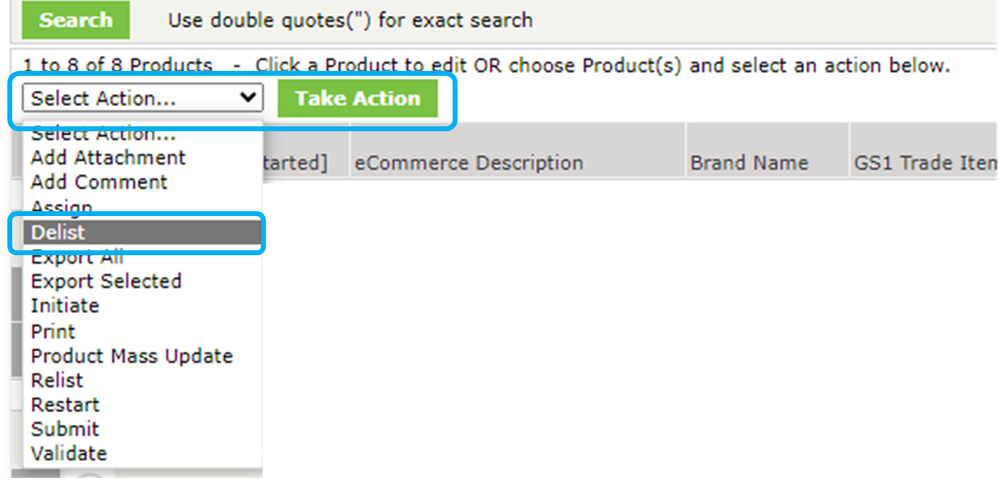
This will move the item hierarchy back to Entered Items so you can make changes as a non-GDSN item.
- In Entered Items, search for the item hierarchy and select the parent GTIN. Again go to the Select Action drop-down and this time select Unlist and Take Action

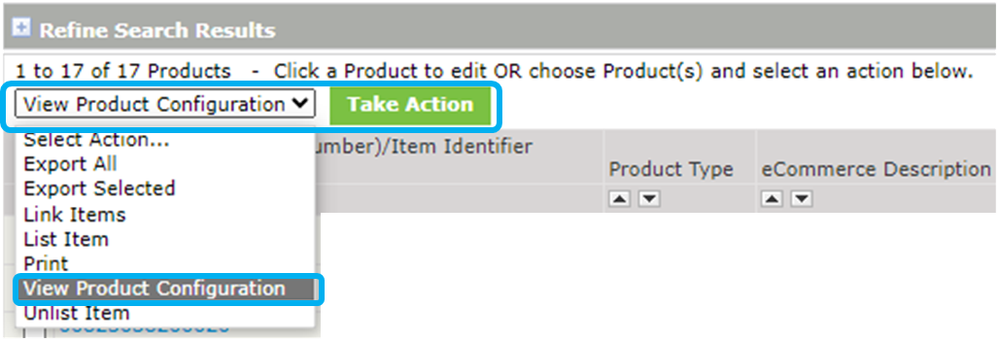
- With the item selected after Unlisting, one more time go to the Select Action drop-down select View Product Configuration, and click Take Action.
- A pop-up window will appear showing the current configuration for your item hierarchy. Unlink the connection between the GTINs that will require a value change. Click Unlink and OK.
- After you unlink the items, go to the parent GTIN(s) and update the “Qty Next Level Items” attribute to match the value you will use to re-link the items. For instance, if you have a Case that contains 10 Eaches, then both your Qty of Next Level Items and your link quantities should be 10 at the Case level.
- Once unlinked, go back to the parent GTIN and link again with the correct quantities. Once all are updated, "list" your item as new, this moves it back to Ready to List/ In Process Supplier. Complete any hierarchy top-off and resubmit. It is a good idea to validate the GTINs in the hierarchy and the overall configuration on the hierarchy screen to make sure the changes are complete.
Please post any questions you have in the Comments space below.


