Customer Managed Vocabularies is a user interface created to manage API Vocabulary Files. A Vocabulary is a way for clients with an API Integration to create a mapping key using Internal Attribute Names instead of Attribute IDs (or GUIDs).
Vocabularies Found in Configurations
API Vocabulary Files (or Attribute Vocabulary Files) are located within Configurations > Company Settings > Vocabularies.
Create a Vocabulary File
- Select Create New button in top right-hand corner.
- A popup will appear. Name and give your new vocabulary file a short description.
- Select Next.
- A list of your account’s preferred recipients will appear. Choose recipients and respective requirement sets that are relevant to your API Integration.
- After selecting relevant recipient requirement sets, select Create.
- You are able to edit (add/remove) recipient requirement set list after creating your vocabulary file.
- Popup will then disappear and you will be taken to the API Vocabulary File Requirement Sets tab.
- The Requirement Sets tab includes a list of all recipient requirement sets you have chosen to include in your Vocabulary file.
- Toggle to the Attributes tab to begin creating “Internal Attribute Names”(aliases) for attributes within aggregate list by double clicking into the respective cell to name and edit. You can also create Groups to help keep attribute lists organized.
- Attributes tab includes an aggregate list of all attributes combined from the Requirement Sets tab.
- Attributes are not added to the Vocabulary file until an “Internal Attribute Name”(alias) is assigned and shows Active in the Status column.
- Finally, after editing your Vocabulary File, be sure to click Save Changes.
- The Delete button will delete your Vocabulary File. Vocabulary files can also be deleted on the Vocabularies index page.
Requirement Set Tab Column Definitions
- Recipient - Name of the recipient containing requirement set.
- Requirement Set Name - Name of the requirement set contained under the recipient.
- Number of Attributes - Number of attributes contained in the recipient requirement set.
- Last Updated - Date the requirement set was last updated. Last Updated Date is also displayed in Recipients > Choose a Recipient in list > Requirement Sets. When attributes are added to a requirement set, attributes will be automatically added to Attribtues list, but will not be active in the Vocabulary file until given an Internal Attribute Name (alias).
- Actions - Select the Trashcan icon in order to remove recipient requirement sets from your vocabulary file list. This will remove the recipient requirement set, along with any attributes that are only associated the the recipient requirement set in question.
Attributes Tab Column Definitions
- Internal Attribute Name - Internal Alias. Editable cells.
- Group (Optional) - Create groupings to organize and filter your attributes within aggregate vocabulary file list. Editable cells.
- CXH Attribute Name - The name of the attribute within Syndigo.
- Format Type - Type of attribute:
- GTIN/UPC
- Number
- Text
- Choice
- Image
- Container (MultiValue)
- Help Text - Attribute definition
- Requirement Set - The number of recipient requirement sets within the Vocabulary the attribute is associated with.
- Required - Is the attribute required in one or more associated requirement sets?
- Status - Does the attribute have an Active Internal Attribute Name (alias)?
- Ignore/Remove - Ability to Ignore or remove single attributes from aggregate vocabulary file list.
Status Definitions
- Active - Attribute has an Active alias that is live in the Vocabulary file.
- Alias Needed - No alias assigned to attribute in list. Attributes that do not have an alias will not show up in the Vocabulary file.
- Ignored - Ignored attributes will not show up in filter. Ignore an attribute by selecting the Eyeball icon located in the Ignore/Remove column.
Create a Group
- Within the Attributes tab, double click a cell under the “Group (Optional)” column. A dropdown will appear with options to select an existing group, or to create a new group.
- Select Create new group.
- In the popup that appears, name your group.
- Click Create.
Once you create a Group, you will be able to select it in the dropdown and apply it to attributes in list.
Note: Currently, Groups cannot be deleted from list.
Edit an Existing Vocabulary File
- Select the Vocabulary File you wish to edit. Then select Edit in the actions bar at the top of the list.
- Within the Requirement Sets tab, you can add new recipient requirement sets by selecting Add Requirement Set at the top of the page OR remove recipient requirement sets by selecting the respective Trashcan icon within the Actions column.
- Within the Attributes tab, you can edit Internal Attribute Names along with Groupings, by double clicking the respective cell. TIP: Copy & Paste using CTRL + C for copy & CTRL + V for paste.
- Click Save Changes.
WARNING: Changes made to Vocabulary may effect API Integration if respective changes are not made within a client’s internal system.
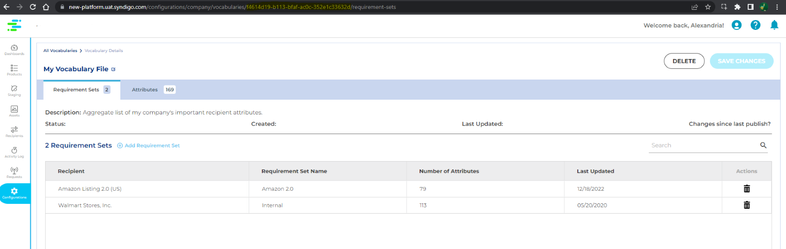
Obtain a Vocabulary File ID (GUID)
Pull a Vocabulary File into Edit in order to view Vocabulary File ID (GUID) within the URL displayed below:
Who Can View and Edit Vocabulary Files Using CMV?
Only Admin users on the account will have access to view and edit Vocabularies.
API Vocabulary Files are only applicable on Syndigo’s new API Integration service.
Feature Set: Customer Managed Vocabularies
Non-API Use Cases:
- Aggregation / copy & paste list of relevant important attributes.
- Understanding the impact of an individual attribute, and how attributes are shared across recipient requirement sets.
- Understanding Attribute Format Type along with Attribute definition provided within the Help Text.


