To add any nutrient code in Item Management, you have 2 different options available.
- You can toggle your interface to the Advanced View within the Nutritional Information attribute set. While the standard interface defaults to a Simple View featuring mandatory nutrients like Total Fat and Carbohydrates, the Advanced View reveals additional fields and dropdowns that allow you to sync any custom or specific regulatory nutrient code across the Global Data Synchronization Network (GDSN).
- You can switch to the All Populated Playlist view to see each nutrient code in its own dedicated section, making it easier to review and add items without relying on the standard table layout.
Using the Advanced View
Select either the Food and Beverage Products or the Most Popular Playlist. Alternatively, some retailer Playlists will also require nutritional data to be entered.
For more information about adding and using Playlists in Item Management, please visit 1WorldSync Playlists Video - 1WorldSync Customer Community
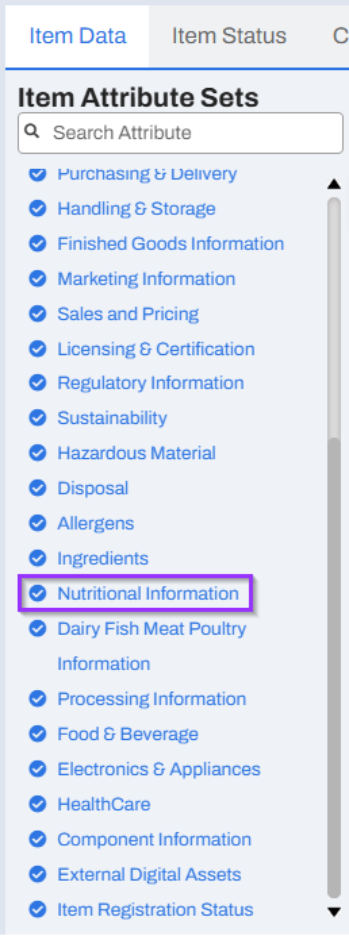
This action reveals the Nutritional Information option under the Item Attribute Sets on the left GUI panel.
- Click on Nutritional Information.

- To add multiple new nutrient codes, click the Plus (+) Button located at the edge of the Nutrient Detail grid.

- The Nutrient Code dropdown will allow you to select from the list by browsing the entries or type search keywords to find relevant searches

Using the All Populated View:
- Activate the All Populated Playlist, alongside any other Playlist that reveals the nutrient information on the item.
- Scroll down to the last nutrient code entered and click the "Add" or "+" button within the Nutrient Detail segment. You can use the dropdown or search function to find the specific code in the Advanced or All Populated view.
- Example: FAT for Total Fat, PRO- for Protein, or VITA- for Vitamin A.


Populate the available information for each Nutrient Code in its own section. Please bear in mind some of the fields in the screenshot above become available only once they are populated for at least one Nutrient Code.
Additional tips
The Foodservice GS1 US Standards Initiative recommends populating nutritional, allergen, and ingredient attributes at the lowest level of the packaging hierarchy (typically the Consumer Unit/ Each).
Always click Validate within Item Management before Publishing. This highlights mismatched units of measure or missing mandatory fields before the item is officially published to your trading partners.
Please ask questions in the comments below.


