SSyndigo Global Community
Turn on suggestions
Auto-suggest helps you quickly narrow down your search results by suggesting possible matches as you type.
Showing results for
Options
- Article History
- Subscribe to RSS Feed
- Mark as New
- Mark as Read
- Bookmark
- Subscribe
- Printer Friendly Page
- Report Inappropriate Content

 CommunityMod_WM
Community Manager
Options
- Article History
- Subscribe to RSS Feed
- Mark as New
- Mark as Read
- Bookmark
- Subscribe
- Printer Friendly Page
- Report Inappropriate Content
04-07-2026 04:41 PM - edited 04-07-2026 04:57 PM
Article Contents:
- Connection Types (Recipient Connection vs. Website Connection)
- Managing Recipient Connections (GDSN, Core)
- Managing Website Connections (Enhanced Content, Analytics)
Connection Types (Recipient Connection vs. Website Connection)
A Connection is an entity that receives product content from Syndigo, such as retailers, partners, a supplier's internal system, and more. A Connection must be added to the account via the Connections tab before products can be linked and published. However, each Syndigo service is associated with a particular connection type. Make sure you know which type fits your service, then proceed with the instructions for adding it.
Recipient Connections
Recipient connections are required for the following solutions:
- GDSN
- Core Marketing
- Manually Configured Recipients
- Syndigo Verified (VMP)
Website Connections
Website connections are required for the following solutions:
- Enhanced Content
- Analytics
Managing Recipient Connections (GDSN, Core)
Connecting your account to recipients can be achieved in the Connections tab found in the left navigation menu. It’s important to note that there are two different Connection Types within Syndigo: Connected Recipients and Connected Websites. A Recipient Connection is related to Core Marketing, GDSN, Manually Configured Recipients & Syndigo Verified setup, whereas a Recipient Connection is related to Core Marketing and GDSN setup. To learn more about the Recipient Details Page, click here.
Adding a Recipient Connection
Below are steps for managing your Recipient Connections.
- In Syndication, from the left navigation bar, click Connections.
- Click Add Connection. The Add Connection modal will display.
- Recipient Selection: Select the recipient you would like to add to the account.
Connections1.png
- Use the Content Type dropdown to filter the list of recipients based on the content types they support.
- Recipient Key Icons:
- Feature fully enabled: The recipient accepts this kind of content, and you’re already set up to send it.
- Feature supported, not enabled: The recipient accepts this kind of content. Select the recipient and select Next to set up this recipient on your account.
- Feature not supported: The recipient does not accept this kind of content.
Connections2.png
- Select a Recipient from the list and click Next to enable content types.
- Note: If you cannot find the recipient, use the click here link at the bottom of the recipient list to create a Custom Recipient.
- Content Type: Specify the content types you wish to enable for the selected recipient.
- Click the grey toggle to enable one or more content types.
- Once you've specified the content types to enable, click Save and Finish.
Connections3.png
Note: Product records will need to be linked to the relevant recipients within the products tab to have the recipient’s requirements available within an edit page. To learn how to link a product to a recipient, click here.
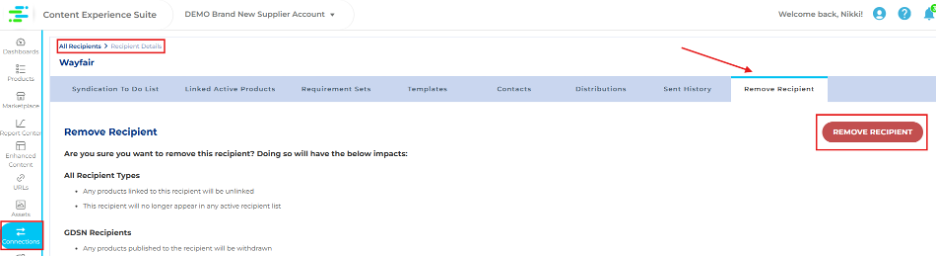
Removing a Recipient Connection
- In Syndication, from the left Navigation Bar, click Connections.
- Click the Recipient name you want to remove.
- Click Remove Recipient from the tabs at the top.
- Click Remove Recipient.
Managing Website Connections (Enhanced Content, Analytics)
Connecting Enhanced Content to sites can be achieved in the Connections tab found in the left navigation menu. It’s important to note that there are two different Connection Types within Syndigo: Connected Recipients and Connected Websites. A Website Connection is related to Enhanced Content and Analytics setup, whereas a Recipient Connection is related to Core Marketing and GDSN setup. To learn more about the Website Details Page, click here.
Adding a Website Connection
- In Syndication, from the left Navigation Bar, click Connections.
- Click on the Connected Websites option.
- You'll be directed to an index of sites that both support Enhanced Content and that the account has already connected for Enhanced Content.
Connections10.png
- Sites can be searched in the top right search field or can be found by using a locale filter.
- Selecting English (US) will result in the index only displaying sites that have the locale English(US), such as Costco.
Connections11.png
- Selecting English (US) will result in the index only displaying sites that have the locale English(US), such as Costco.
- You'll be directed to an index of sites that both support Enhanced Content and that the account has already connected for Enhanced Content.
- To add a new site to your account, click the Add Connection button in the top left.
Connections12.png
- Next, search for the desired website you’re attempting to add.
- Multiple connection types are managed in this pop-up, so it’s important to understand the key in the top left. For Enhanced Content purposes, you want to ensure you’re adding a website that allows the Enhanced Content Connection. A gray checkmark in the Enhanced Content Connection column indicates that the website accepts Enhanced Content connection. A blue checkmark indicates that there is at least one Enhanced Content website connection already associated with the Logo.
Connections13.png
- You can either manually search for the desired website, or filter by the “connection type” to only allow retailers that accept the Enhanced Content Connection to appear.
Connections14.png
- Multiple connection types are managed in this pop-up, so it’s important to understand the key in the top left. For Enhanced Content purposes, you want to ensure you’re adding a website that allows the Enhanced Content Connection. A gray checkmark in the Enhanced Content Connection column indicates that the website accepts Enhanced Content connection. A blue checkmark indicates that there is at least one Enhanced Content website connection already associated with the Logo.
- Select the desired website, then click Next. Please note: Some websites separate their connections by Locale, so be sure that you’re adding the correct region.
Connections15.png
- To finish connecting a site for Enhanced Content, in the “Website Connections” table, flip the toggle on in the Enhanced Content column.
Connections16.png
- To connect Enhanced Content to more sites within the same parent logo, repeat the previous step.
- To connect Enhanced Content to more sites from other parent logos, click Save and Add New Connection.
Connections17.png
- When you are finished connecting Enhanced Content to sites, click Save and Finish.
The newly connected sites will now be available to select when you create your next collection and when supported, automapping for Enhanced Content will begin for the sites you have connected.
Click here to view the additional settings and useful information that can be found in the Website Details Page.
Removing a Website Connection
In certain scenarios, it may be desired to remove the Enhanced Content connection for a site. Doing so will immediately remove all Enhanced Content on that site and for only that site. The URLs for that site that may be associated with various products will also be toggled to “Disabled” for Enhanced Content.
- In Syndication, from the left Navigation Bar, click Connections.
- Select Website Connections.
- Click on the site you would like to remove the Enhanced Content connection for.
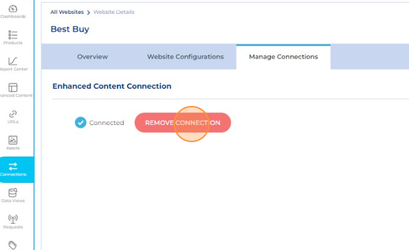
- Click on the Manage Connection tab.
Connections20.png
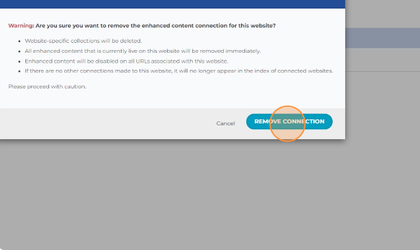
- Click the red Remove Connection button. Enhanced Content will immediately be removed for the site that was just disconnected.
Labels:
Version history
Revision #:
3 of 3
Last update:
04-07-2026
04:57 PM
Updated by:

