Mapping your URLs to your products, ensures that their Enhanced Content appears on retailer websites when published.
Your product URLs act as an endpoint that lets Syndigo know where on the internet to send your content to. There are two ways to map Enhanced Content; manual or automatically.
Manual Mapping
URLs are managed at the product level. There are two primary ways to manually add URLs to your products.
Manually Map from a Project:
- Compile all retailer URLs you intend to add to your products.
- Navigate to the Enhanced Content Index and enter a Project that has the products you’re looking for. (You can also search for the product(s) by entering their unique identifier in the Index search.)
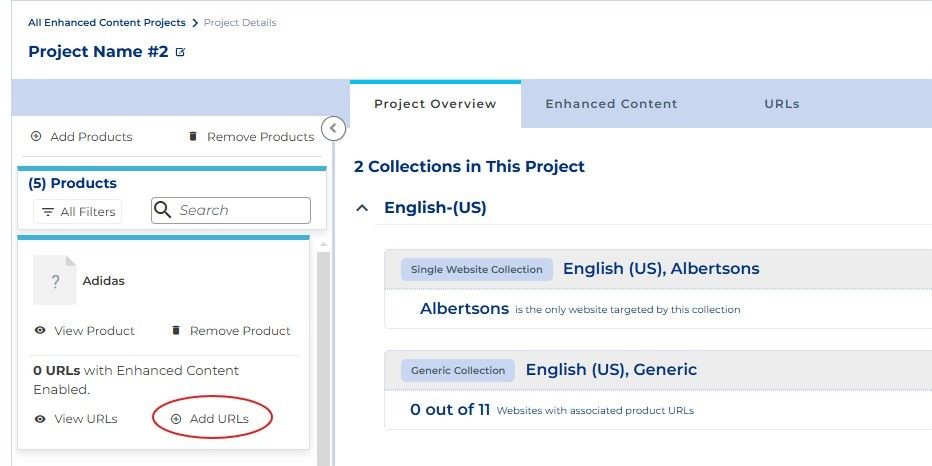
- Once inside the Project, navigate to the Product Rail on the left, and search for the product you want to add URLs to.
- Click +Add URLs on product you want to add URLs to and paste all URLs in the pop up that appears. If adding multiple URLs at once, make sure to separate each URL into a new line in the pop up. When finished click Next.
 ManualMap1.jpg
- Ensure all URLs are validated then click Next.
- Depending on what services are in your account, you may have multiple features you’re able to enable on the last pop-up screen. If you’re ready to enable this URL to receive Enhanced Content, then turn on the EC toggle. Turn on any other features you would like to enable, then click Submit.
- The URLs have now been added to the product record.
- You can navigate to the URLs tab of the Project to see all URLs that have been associated to the products in that Project.
- Within the URLs tab, the table will label which product the URLs are linked to, the URL status, the website name itself, what collection that URL will receive and lastly, whether the Enhanced Content features are enabled. If the Enhanced Content toggle is off, it is not enabled and cannot receive Enhanced Content.
- There’s additional information at the product level for each URL, so navigate to your desired product’s detail page, then the product’s URLs tab to view that information.
Manually Map from a Product:
- Compile all retailer URLs you intend to add to your products.
- Navigate to the Products Index and enter the product you want to add the URLs to.
- Once inside the product, navigate to the URLs tab.
- Click +URL and paste all URLs in the pop up that appears. If adding multiple URLs at once, make sure to separate each URL into a new line in the pop up. When finished click Next.
- Ensure all URLs are validated, then click Submit.
- If you’re ready to enable this URL to receive Enhanced Content, turn on the EC toggles. The URLs have now been added to the product record.
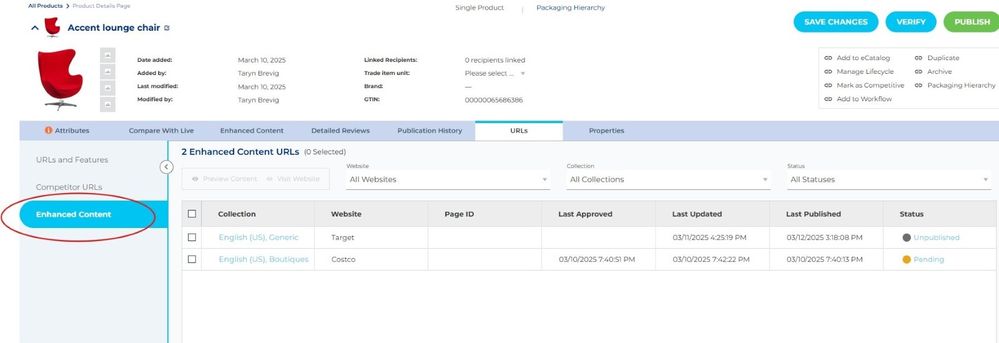
- To view additional information about each of your URLs, navigate to the Enhance Content section, underneath URLs and Features. Here you can see which what collection each URL will receive, the Website Name, Page ID, relevant timestamps and URL status.
 ManualMap2.jpg
Automapping
If you'd rather have the platform automatically assign URLs to products, you can map your URLs via Automapping. Click here for automapping details and instructions.


