SSyndigo Global Community
Turn on suggestions
Auto-suggest helps you quickly narrow down your search results by suggesting possible matches as you type.
Showing results for
- Customer Community
- Customer Community Knowledge Base
- Enhanced Content Knowledge Base
- Enhanced Content
- Manage Asset Accessibility
Options
- Article History
- Subscribe to RSS Feed
- Mark as New
- Mark as Read
- Bookmark
- Subscribe
- Printer Friendly Page
- Report Inappropriate Content

 CommunityMod_WM
Community Manager
Options
- Article History
- Subscribe to RSS Feed
- Mark as New
- Mark as Read
- Bookmark
- Subscribe
- Printer Friendly Page
- Report Inappropriate Content
04-07-2026 05:23 PM - edited 05-15-2026 02:52 PM
Article Contents:
Terminology
Alternative (Alt) Text: Description of an asset (usually an image) used to help viewers who are unable to see or process an image by sight alone. Generally read via a screen-reader. Text should describe the asset in its entirety, including: objects, colors, brands, actions, scenery, etc. to give a robust overview.
VTT Files: A captioning file for videos. These files can be synchronized with video or audio.
Accessibility Warnings
The following warnings will appear when accessibility content is not up-to-date for an asset:
Red Warning Bubble:
- Appears when a VTT file is NOT present for a video being used in an Enhanced Content Widget, or if VTT is not present for collection language.
- Will appear beside Manage Asset Accessibility button in Enhanced Content collection if any issues are found with VTT files.
Yellow Warning Bubble:
- Will appear if any image does not have Alt Text for the language of the collection
- Will appear beside Manage Asset Accessibility button in Enhanced Content collection if any issues are found with alternative text.
Managing Alt Text
Alt text is a key component in providing more accessible content for images through Syndigo.
Image alt text can be applied in numerous places throughout the platform:
- The dedicated Image Alt Text field within the Widget Editor
- The Manage Asset Accessibility modal in the enhanced content building experience
- The AI Alt Text experience in the enhanced content building experience
- The Asset Details modal – available both within the widget building experience and the Asset library
- Asset Metadata Spreadsheet export and reimport
Note: Image alt text only has to be inputted one time for any given language, regardless of the interface or method. When alt text is add or modified, the image metadata will be universally updated wherever that asset is being utilized throughout all other Enhanced Content Collections.
Navigate to the Community article, Alt Text for Images in Enhanced Content.
In-Line
- Select Edit on Widget.
- Enter Alt Text for Collections language in textbox.
- Select Update Widget.
Note: When alt text is updated in the Widget Editor modal, alt text will be universally updated wherever that asset is being utilized - it is NOT an exclusive change to the product/enhanced content being actively updated by the user.
Asset Library
- From the left-hand navigation panel, click Assets > All Assets.
- Search/filter to select the asset you wish to add alt text for.
- Once an asset is selected, the Asset Details modal will appear. Click the Accessibility Tab.
- Here, users can add, edit and remove alt text for image and video assets. Follow the prompts to add/edit the Image Alt Text and select a Language.
Note: When alt text is updated in the Asset Details modal (asset library), alt text will be universally updated wherever that asset is being utilized - it is NOT an exclusive change to the product/enhanced content being actively updated by the user.
Accessibility Modal
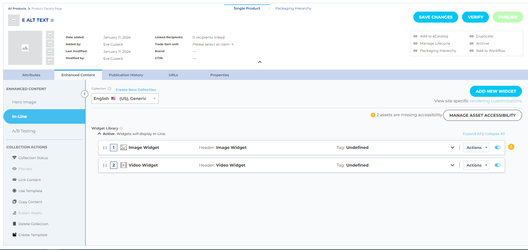
- Select Manage Asset Accessibility button in top right corner. Multi-edit modal will open.
- The Images tab will allow you to edit alt text for all images in the collection's Enhanced Content widgets. Select the box in the Image Alt Text column to add, edit, or remove alt text for the associated image.
- When alt text has been updated, click outside of the box to stop editing.
- Click Save.
Note: When alt text is updated in the Asset Accessibility modal, alt text will be universally updated wherever that asset is being utilized - it is NOT an exclusive change to the product/enhanced content being actively updated by the user.
Managing VTT Files
Like alt text, VTT files are an important component in making content accessible for EC viewers. Users can add VTT content directly to an uploaded asset in 2 ways:
- On the asset via the asset library
- Via the accessibility modal in enhanced content
Note: VTT files are automatically generated for videos, but an approval process must be followed for VTTs to be applied.
Asset Library
- From the left-hand navigation panel, click Assets > All Assets.
- Search/filter to select the asset you wish to add alt text for.
- Once an asset is selected, the Asset Details modal will appear. Click the Accessibility Tab.
- Select from the following options:
- If the autogenerated file has not yet been created, click the Generate .vtt file button to generate a new vtt. This option is suitable for videos with audio that needs to be transcribed.
- Please allow a few minutes for the vtt generation service to create the file.
- Once it has been created, you will need to approve or reject.
- Approve by clicking the green approve button.
- To use, toggle the Use .vtt option on.
- Click the toggle switch to attach a Generic .vtt. This option is suitable for videos that contain “Music Only” or “No Audio”.
- If you have a .vtt file you would like to use, click the upload .vtt file link.
- If the .vtt file has already been uploaded to Syndigo, you can search the media library for the appropriate file and select it.
- To upload a new .vtt file from your device, click the Upload Files button and attach.
- If the autogenerated file has not yet been created, click the Generate .vtt file button to generate a new vtt. This option is suitable for videos with audio that needs to be transcribed.
- Click Save.
- Note: The .vtt file will appear when you add the video asset to the widget. This will give you the opportunity to download the file to preview, and then approve or reject it.
Accessibility Modal
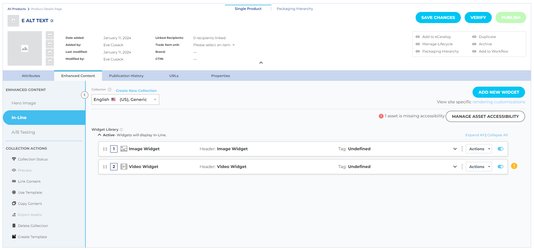
- Select Manage Asset Accessibility button in top right corner. Multi-edit modal will open.
- The Videos tab will allow you to edit alt text for all Videos in the collections Enhanced Content widgets. Select from the following options:
- If the autogenerated file has not yet been created, click the Generate .vtt file button to generate a new vtt. This option is suitable for videos with audio that needs to be transcribed.
- Select the language you would like the file generated in.
- Please allow a few minutes for the vtt generation service to create the file.
- Once it has been created, you will need to approve or reject.
- Approve by clicking the green approve button.
- To use, toggle the Use .vtt option on.
- Click the toggle switch to attach a Generic .vtt. This option is suitable for videos that contain “Music Only” or “No Audio”.
- If you have a .vtt file you would like to use, click the upload .vtt file link.
- If the .vtt file has already been uploaded to Syndigo, you can search the media library for the appropriate file and select it.
- To upload a new .vtt file from your device, click the Upload Files button and attach.
- If the autogenerated file has not yet been created, click the Generate .vtt file button to generate a new vtt. This option is suitable for videos with audio that needs to be transcribed.
- Click Save.
Note: When VTT files are updated in the Asset Accessibility modal, VTTs will be universally updated wherever that asset is being utilized - it is NOT an exclusive change to the product/enhanced content being actively updated by the user.
Labels:
Version history
Revision #:
3 of 3
Last update:
05-15-2026
02:52 PM
Updated by:

