SSyndigo Global Community
Turn on suggestions
Auto-suggest helps you quickly narrow down your search results by suggesting possible matches as you type.
Showing results for
- Customer Community
- Customer Community Knowledge Base
- Enhanced Content Knowledge Base
- Enhanced Content
- Enhanced Content Data View
Options
- Article History
- Subscribe to RSS Feed
- Mark as New
- Mark as Read
- Bookmark
- Subscribe
- Printer Friendly Page
- Report Inappropriate Content

 CommunityMod_WM
Community Manager
Options
- Article History
- Subscribe to RSS Feed
- Mark as New
- Mark as Read
- Bookmark
- Subscribe
- Printer Friendly Page
- Report Inappropriate Content
04-08-2026 01:45 PM - edited 04-08-2026 01:53 PM
Unlocking Efficiency and Scale: Benefits of Using Enhanced Content Data View for Your Projects
Creating and managing Enhanced Content at scale can be a complex, manual upload-heavy process - but it doesn’t have to be. Syndigo’s Enhanced Content Data View is a powerful feature designed to centralize and streamline the management of video, image, and text assets. By storing the assets as product attributes—some generic, some tailored to specific content types – Brands are enabled to efficiently build enhanced content across their entire product catalog.
What Is the Enhanced Content Data View?
The Enhanced Content Data View is a curated set of attributes tied to product records that serve as a dedicated home for assets. These attributes can include image and video files and marketing copy or product specifications in the form of text that support enhanced content layouts. Once populated, these fields allow users to quickly reference the assets needed within any Project.
Whether you’re updating an individual product’s rich media or scaling a campaign across thousands of SKUs, the Enhanced Content Data View ensures all your content is logically organized and immediately accessible.
Getting Started: How to Populate the View
There are two options to assign assets to the Syndigo Enhanced Content Data View attributes:
Option 1: Through the Product Details Page interface, working on one product record at a time.
Note: This option is only recommended if only a very small number of products or attributes require updates.
Option 2: Through a spreadsheet Import, which supports uploading information in bulk for many products at once. (Recommended for most cases!) This option requires either URLs where image, video, and document assets are hosted or Syndigo Asset file names.
- Method 1: Manual import of the spreadsheet through Syndigo’s platform
- Method 2: Automated import from a shared location where the file is stored (i.e. SFTP)
Option 1: Product Details Page Interface
- Navigate to the Products Index. Then select the desired product record.
- On the Product Details Page, in the Attributes section, select Syndigo Data Views – Enhanced Content from the Syndication recipient or data view dropdown.
dataview1.png
- Change the Attribute Value Language from the default of English (US) if applicable.
- Upload assets or input text into the attributes best suited to the desired content type. For example, the attribute “Feature Set Banner 1 Image” is ideal for to reference in the creation of a Feature Set widget with the “Banner” layout configuration.
Recommendation: Given that there are many attributes, it may be difficult to scroll through the interface. We recommend utilizing the “Jump to Attribute” feature: Search for the specific content type you are seeking and select it from the list to jump straight to the attribute in the interface, no manual scrolling required!dataview2.png
- Always remember to save changes as you go, to ensure updates are committed.
Option 2: Method 1 – Manually Import the Attributes Spreadsheet
- Navigate to the Products Index. Then select all desired product records.
- Export the Attribute Spreadsheet:
- Choose the Attribute Spreadsheet – Typical Product Data Flow option.
- Set the recipient requirement set to Syndigo – Enhanced Content.
- Optimize the Identifiers: The export defaults to six identifiers. Remove any unnecessary ones, keeping only those essential for the system to match product records accurately.
- Change the locale, if applicable, from the default of English (US). While more than one locale may be selected for a single export, we recommend keeping each spreadsheet restricted to one locale for ease of use.
dataview3.png
- Export the Spreadsheet Template. Complete the export. A spreadsheet will download.
- Populate the Spreadsheet:
- Images and Video files may be input as either:
- URLs where the assets are hosted*
*The URLs must support direct download. URLs pointing to a directory or webpage where assets are stored are not supported. - File Names of Assets in Syndigo*
* Please ensure file names are unique for each asset, otherwise the upload will not succeed.
Syndigo Tips:- Keep an accurate list of the file names in a spreadsheet.
- Upload all the image and video files to Syndigo > Assets.
- Referencing the list of file names, copy and paste the exact files names under each attribute.
- URLs where the assets are hosted*
- Marketing copy and descriptive text should be provided directly in the spreadsheet fields.
Syndigo Tips:
The list of Attributes in the spreadsheet starts with ‘Generic Assets’. If certain cells don’t apply to you, feel free to “hide” them. For accurate classification, widget specific attributes start at Feature Set Banner 1.dataview4.png
- Images and Video files may be input as either:
- Import the completed spreadsheet into Syndigo:
dataview5.png
- Navigate to Products Index.
- Click the Import button.
- Complete the following information in the Import modal:
- Under “Select the Primary recipient for this import”, select Syndigo.
- Under “Do you want to link these products to recipient – requirement set(s)?” select: No, do not link to products.
- Under “What Primary identifier would you like to use this import?” select the appropriate identifier that should be used to match to existing Product records or the desired identifier when creating new Product records.
- Leave all other settings with their default selections and click the Confirm button.
- A confirmation message will be presented and the browser will auto-navigate to the Activity Log where the status of the import can be tracked.
- Once complete, confirm that assets were downloaded successfully assigned to their respective attributes as expected.
Option 2: Method 2 – Automated Import from a Shared File Location
For product catalogs that are expected to expand frequently, Syndigo recommends setting up a Product Import Feed. This is a scheduled system process in which the Syndigo platform automatically retrieves the designated spreadsheet file from a shared location and imports it, eliminating the need to manually log into the platform and upload files.
Supported File Sources:
- Amazon S3
- FTP
- SFTP (Syndigo can create and provide a dedicated SFTP directory upon request)
- HTTP Data Fetch
- Google Cloud Storage
Product Import Feeds are available to all Brands at no additional cost. To request setup, please contact your Syndigo representative.
Key Benefits of Utilizing the Enhanced Content Data View
Streamlined Asset Access During Enhanced Content Creation
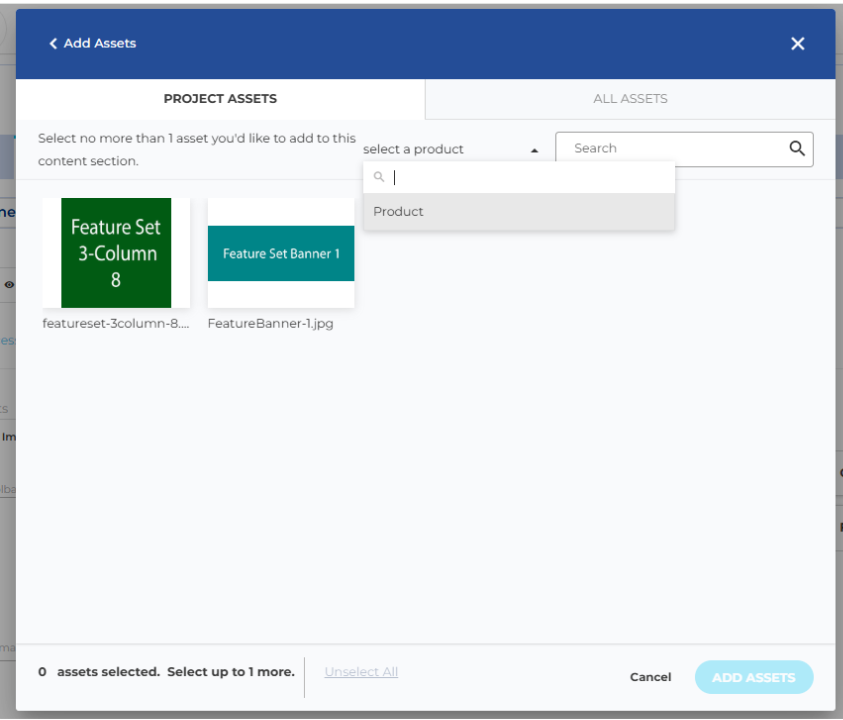
Populating your product attributes upfront means all related media is accessible directly within the Enhanced Content creation interface. It is not necessary to search through the entire Asset library when adding assets to a widget. In the Add Assets modal, simply select the Product with the filled-out attributes from the dropdown, and the view is instantly filtered down to only the associated assets.
Unlock Programmatic Enhanced Content Creation at Scale
The Enhanced Content Data View is optimized for automation. When attributes are properly filled out, they become plug-and-play inputs for:
- Layout Assistant: Our intelligent tool that creates compelling layouts using data-driven insights.
- Spreadsheet Imports to create Enhanced Content: Ideal for bulk content creation, this tool reads a Brand-provided spreadsheet and generates templatized content using the pre-filled attributes.
These solutions enable rapid, consistent enhanced content deployment across hundreds or thousands of products, helping teams save time and scale marketing efforts efficiently.
Conclusion
The Enhanced Content Data View isn't just a backend convenience — it's a strategic tool. By investing a bit of time upfront to organize and populate product attributes, you're setting your team up for:
- Faster go-to-market timelines
- Stronger content governance
- More scalable and consistent enhanced content execution
Whether you're a content strategist, brand manager, or digital shelf coordinator, leveraging the Enhanced Content Data View is one of the smartest ways to streamline your workflows and unlock the full potential of Syndigo’s content creation ecosystem.
Start populating your Enhanced Content Data View today—and let the system do the heavy lifting.
FAQs
I don’t want to sign in to Syndigo to add/update attributes. Is there a more hands-off way to do this?
- The spreadsheet file may be uploaded to a location such as SFTP where Syndigo may ingest it in a feed. Ask a Syndigo account representative for more details about this option.
What should I do if I have multiple products in the same Project? Should I update the attributes for all?
- If the products will continue to have the same exact assets and enhanced content layouts into the future, then only one product’s attributes should be populated and maintained.
Labels:
Version history
Revision #:
2 of 2
Last update:
04-08-2026
01:53 PM
Updated by:

