11WorldSync Global Community
Turn on suggestions
Auto-suggest helps you quickly narrow down your search results by suggesting possible matches as you type.
Showing results for
- Customer Community
- Customer Community Knowledge Base
- ChannelOnline Release Notes Knowledge Base
- ChannelOnline Release Notes
- ChannelOnline 8.9 Release Notes
Options
- Article History
- Subscribe to RSS Feed
- Mark as New
- Mark as Read
- Bookmark
- Subscribe
- Printer Friendly Page
- Report Inappropriate Content

 CommunityJedi22
Community Manager
Options
- Article History
- Subscribe to RSS Feed
- Mark as New
- Mark as Read
- Bookmark
- Subscribe
- Printer Friendly Page
- Report Inappropriate Content
on
04-14-2026
08:39 AM
- edited
2 weeks ago
by
 kewilson
Release version 8.9.0 focuses on UI adjustments, personnel access rights around document functionality, Item management for custom items and categories, new optional attributes, custom supplier warehouses, and back-end improvements that will affect security, performance, and reliability. Find out more about the latest features, changes, and fixes in ChannelOnline.
- Documents: Merged ‘Supplier’ with ‘Standard Plus’ views to newly named ‘Supplier Plus’.
- Access Rights: Two new access settings for performing the ‘Convert to Master Order’ and the ‘Create Series’ actions.
- Items Admin: Combined Items Admin search to include products, services, CEs,ce and labor items.
- NEW Item Attributes: Special Delivery Requirements and Non-Returnable flags.
- General Improvements and Fixes.
Released April 24, 2026
Heads up! Interface Update!
You might notice things looking a little different after this release. We’ve made some big behind-the-scenes updates to improve overall performance and set us up better for the long run.
Documents
Supplier Plus - We’ve combined the Standard Plus view with the (selected) Supplier view on all documents. The combined page is now labeled “Supplier Plus”. This change has reduced the number of views from four down to three: Standard, Supplier Plus, and All Suppliers. As Standard Plus did, Supplier Plus includes the selected supplier along with the ability to perform line-level editing.
In conjunction with this change, we modified the view selection settings for print/email accordingly. Each print/email selection settings for the document ‘view’ contains the text in (parentheses) and is updated for quote, sales orders, and RMA documents accordingly.
- “Quote (Standard)” to “Quote (Standard)”
- “Quote (Sourcing)” to “Quote (Supplier)”
- “Quote (Show All)” to “Quote (All Suppliers)
- “Sales Order (Standard)” to “Sales Order (Standard)”
- “Sales Order (Sourcing)” to “Sales Order (Supplier)”
- “Sales Order (All)” to “Sales Order (All Suppliers)”
- “RMA (Standard)” to “RMA (Standard)”
- “RMA (Sourcing)” to “RMA (Supplier)”
- “RMA (All)” to “RMA (All Suppliers)
As before, on document delivery, the Standard view will default to the selected (Standard) template, and Supplier Plus will default to the (Supplier) template for email and printing.
My Preferences document additions:
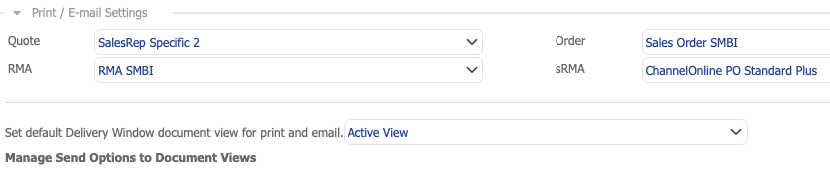
- Standard View default for printing. This user preference setting, in My Preferences > Print / Email Settings, makes the Standard document view the default for when users click the send button from the document footer. The default is the document active view but select the dropdown for the setting "Set default Delivery Window document view for print and email." to switch it to either Standard, Supplier, or All Suppliers.
Note: the setting is above the send options section (see below).
- Header hides logo by default. Users can now choose to collapse the company logo by default (Hide) to streamline their view when working in documents. This setting is located in My Preferences >General under the Documents section and labeled "Display company logo on document page in the custom fields section by default". Select the 'Hide' checkbox and save.
Serial#s and Asset Tags - There are now two ways to input serial #s on POs from the interface, including the ability to upload multiple at a time. Import Serial #s and Asset Tags at the line level container to the right-hand side of the product line was implemented for better accuracy with PO updates. Plus, a minor modification to the Serial and Asset Tag uploads window from below the item description to display any already uploaded serial numbers and asset tags at the top of the pop-up edit window.
An additional benefit of providing 2 methods of adding serial numbers to the line item now provides a way to send customers ship status notifications without having to include the serial numbers alongside tracking information.

XML Users: When exporting PO or SO documents with serial #s, please be sure to use the serial container via the icon at the right side of the line. If you do not use that, serial numbers will not export correctly when outside the ship containers. To ensure they will export as expected, please use the steps below:

Document Access Rights - With this update, two new Access Rights were added to assist in the control of which users can perform the convert to Master Order and the Create Series actions. Access Right settings are under the documents section when making or editing access rights. In order to have access to these new rights a user must have access to the parent right labeled "Create / Edit Sales Orders for all Customers". Look for the following access right selections underneath.
- “Convert Sales Orders to Master Orders for all Customers”
- “Create Auto Series for Quotes and Sales Orders for all Customers”
Learn more about Auto-generated quotes and orders.
Items Administration
Items Admin Search - Combined Items Admin search to include products, services, and labor items. Now the same search criteria can be used to look for common item types (except for bundles and configurations). When a user lands on Custom Items, they will be able to switch the search criteria from the default Product (radio button selection) to either service or labor. Upon changing the selection, for example, to Service, the results will update for that selected item type (Service) and display the corresponding service item result table. For each item type, users can now filter search results by categories and manufacturers to quickly find the items they are searching for.
- As part of this update we have also included the Manufacturer Part# Lookup button in the Custom Items section to assist in item creation and editing.

- Supplier filtering was added to service and labor items to help sort search results. After selecting a product / service / labor radio button, once the page refreshes you can sort all item types by whether the item is assigned to a supplier or not. The old check box for “View Custom Items with no Associated Supplier“ has been replaced with a dropdown selection for ‘Suppliers (All)’, ‘No Supplier(s)’, and ‘With Supplier(s)’.
- A Recycle Bin has been added to custom items. Deleted items are now retrievable and can be restored and put back into use. Keep in mind that deleted items lose the connections to suppliers, these connections will need to be reset to make these products available for catalogs and pricing.

- Site Search in the top header has been updated to reflect the split for service and labor items. Instead of seeing a single 'Service & Labor' selection users will see two separate ones. One for 'Service' and a separate one for 'Labor'.

Item Attributes Introduced (NEW) - Expanded the optional item attribute functionality to include new options and updates to importing attributes.
- Special Delivery Requirements: Some reseller items require specific delivery information to be obtained at the time of order. In some cases, the customer needs to request or specify if a lift-gate or inside delivery is required, or supply a receiving contact so the delivery company can arrange delivery. Users can tell which line items need Special Shipping Instructions because the comment will appear below the line description.
- The non-returnable flag was added to item edit, and a message is included on the product page and under the description in the document product table.

Both Suggested Items and Product Condition have been added to the Product Attribute Import file, along with the new Special Delivery and Non-returnable options for easier updating.
NOTE: If you are unfamiliar with optional attributes, take a look at discontinued, replacement item and e-waste fee and ratio (in.).
Marketing
Coupon Tax Settings - Two new settings were added to the coupon create/edit window to determine where in the document the total calculation is to apply the tax. A new row can be found inserted below Discount to manage “Tax Calculation:” with the radio button options (deployed in 8.8.5).
- Calculate tax before applying the Coupon (applies tax to the item subtotal amount, then reduces it with the coupon discount).
- Calculate tax after applying the Coupon (applies the discounted amount to the item subtotal and then calculates tax based on the adjusted item subtotal).

Expired Coupons - The system now stores expired coupons for retrieval and reactivation. This new archiving functionality works in a similar way to the Recycle Bin, but it the button is labeled as "Expired". Functionally it works like this:
- New Expired button for coupons located on the upper right hand side of the results list table
- Once a coupon has expired, its automatically moved into the Expired bin.
- ONLY unused coupons are deletable; all others will go to expired. Deleted coupons cannot be retrieved.
- When restoring a coupon from the expired bin a new future expiration date will be required.
- Restored coupons can only be reviewed (Read Only) or copied, they are not editable.
General Improvements & Fixes
- USPS Update: Converted to a new API. Due to mandatory updates to the USPS API, a new address verification code was put in place. When an address is not recognized, suggestions will be made available in the city name, state, and zip code fields. The API does not make suggestions on street numbers or names.
- Reports: Added new column sections to the Account reports. Columns include: Price Profile, Price Tier, UNSPSC Profile, Order Processing, Internal Notes, Notification Email, Needs Order Verification, Catalogs, and more.
See Reports > Account for a complete selection of fields.
- Allowing for the document ‘Tax’ label to be set as ‘Tax Estimate’ for documents: quote, order, and proposal. Now, if needed, resellers can globally set the Tax text in the document totals section to display “Tax Estimate” instead of “Tax” on quotes and orders (internal/external). This setting is also reflected in the Delivery Window for print and email.
- No spaces accepted in file names! For ongoing security improvements, we have eliminated the use of spaces in file names being uploaded into ChannelOnline through the import wizard. For example, a file named “2026 Ronald McDonald” should now be something like “2026RonaldMcDonald”. Failing to remove spaces will likely result in errors.
- Established a backend switch to hide address edit icons on the document/cart in the store. Available by request only.
- Converting ounces/grams to pounds/kilograms. All weights coming into ChannelOnline are expected to be in pounds (lbs.) and Kilograms (kg.) because it is the default unit of measure based on the geographic market. When the application looks to product specifications using ounces or grams, it will convert them to a set weight of 1 lb. (US) or 1 kg. (Canada) (deployed in 8.8.5 hot fix).
- Resolved a situation where the system was removing available quantity too soon through the shopping cart process. When an item from a custom supplier with internal stock is added and removed from a cart, the inventory total is +1. This behavior is inaccurate. Qty from cart should not be increased, but only decreased if the cart is converted to an order.
- Activated using the manufacturer name within the product page header to search for products from that specific manufacturer.
Support Tip
If you use your TD Synnex (ECExpress) credentials for the ChannelOnline Supplier API integration, there are a few important things to know whenever you update your password:
- TD Synnex requires passwords to be updated every 90 days! If you see an "Invalid Username or Password” error message in ChannelOnline, check that first.
- Use only supported special characters: Using any other special characters will cause errors across all API functions. TD Synnex's API only accepts the following special characters in passwords: ! @ $
- ChannelOnline Needs the New PW: After changing your TD Synnex password, you must also update it in ChannelOnline under Supplier Integration Settings. Skipping this step will disable:
- Live Cost & Availability checks
- Electronic PO submission
- Quote importing
For step-by-step setup instructions, visit the TD Synnex API Setup article on the 1WorldSync Customer Community.
If you have any questions or issues, please reach out to support at cs-col-support@1worldsync.com
Labels:
Version history


